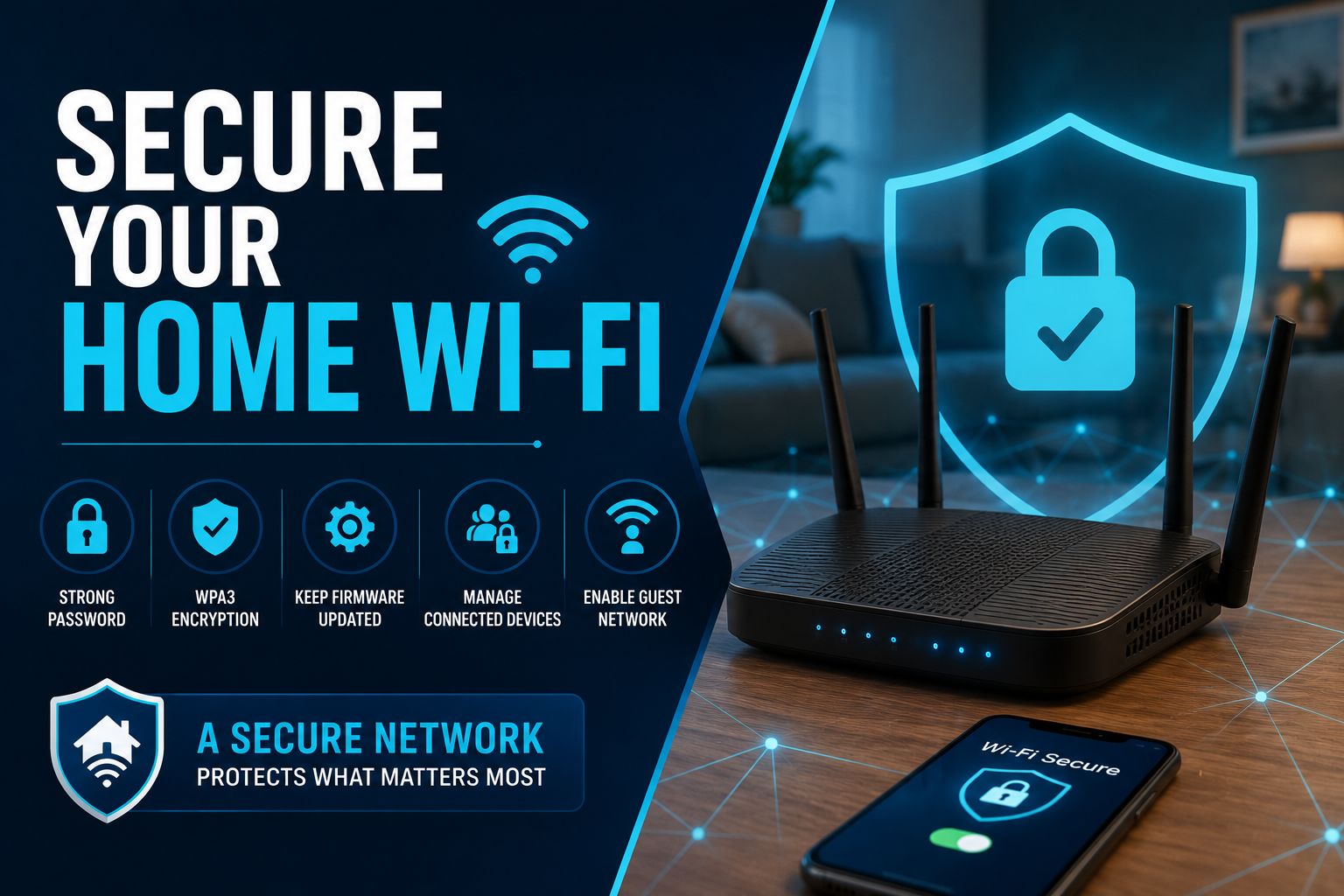
Why Your Home Wi-Fi Network Is a Bigger Malware Target Than People Assume
If you want to secure your home Wi-Fi network against malware, the router matters as much as the antimalware software on your laptop. Most households treat Wi-Fi security as a "set it and forget it" task handled once, on installation day, and never revisited. Attackers count on that. A router with default login credentials, outdated firmware, or an open guest network isn't a minor inconvenience — it's an open door that lets malware move between every phone, laptop, smart TV, and camera connected to it.
This guide walks through how malware actually reaches a home network, the router and Wi-Fi settings that close the most common entry points, and where dedicated anti-malware protection fits alongside network-level defenses. None of this requires networking expertise. Most of it takes less than 20 minutes total, and you'll only need to repeat a couple of steps periodically.
How Malware Actually Gets Onto a Home Network
Wi-Fi itself isn't the vulnerability — weak configuration is. Malware reaches a home network through a small number of well-documented paths, and understanding them makes the fixes below feel less arbitrary.
A compromised device joins the network
A laptop picks up malware from a phishing email or an infected download, then connects to the home Wi-Fi. Once inside, some malware families actively scan the local network for other reachable devices, particularly ones with weak or shared passwords. A guest's phone can introduce the same risk, which is why a shared "everyone uses the same password" network is riskier than it looks.
The router itself gets attacked directly
Routers run their own firmware, and that firmware can be compromised the same way software on a PC can. Attacks typically exploit default admin credentials, unpatched firmware vulnerabilities, or exposed remote-management features. Once an attacker controls the router, they can redirect traffic, harvest data, or push malware to every connected device — without ever touching an individual computer.
Rogue or spoofed networks
This is more common outside the home, but it's worth flagging: a network with the same name as a legitimate one can trick a device into auto-connecting, after which an attacker can intercept traffic or serve malicious content. Devices that remember and auto-join saved networks by name (not by security certificate) are the ones most exposed to this.
9 Steps to Lock Down Your Router and Wi-Fi Settings
1. Change the default admin username and password
Default router credentials are publicly listed by manufacturer and model, which means they aren't really a secret at all. Log into the router's admin panel (usually via an address printed on the device) and set a unique, non-guessable password before doing anything else.
2. Use WPA3 encryption where the router supports it — WPA2 otherwise
Encryption determines whether traffic between your devices and the router can be read by anyone nearby. Avoid WEP and legacy WPA entirely; both are considered broken. See the comparison table below for what changes between WPA2 and WPA3 in practice.
3. Set a strong, unique Wi-Fi password
A long passphrase (12+ characters, mixing word fragments, numbers, and symbols) resists brute-force guessing far better than a short password, even a complex one. Reusing a password from another account is the single most common mistake here.
4. Keep router firmware updated
Firmware updates patch the vulnerabilities that router-targeting malware exploits. Many routers can check for updates automatically from the admin panel; a few minutes a month is usually enough to stay current.
5. Disable WPS, UPnP, and remote management unless you specifically need them
Each of these features trades a small amount of convenience for a meaningfully larger attack surface. WPS in particular has known weaknesses that make it easier to brute-force network access.
6. Create a separate guest network
Guests and their devices go on their own SSID, isolated from your primary network. If a visitor's phone happens to carry malware, it can't reach your computers, smart TV, or NAS.
7. Put IoT and smart-home devices on their own network segment
Smart plugs, cameras, and voice assistants are frequently the least-secured devices in a household, since they rarely receive regular security updates. Isolating them limits how far an infection on one of these devices can spread.
8. Turn on the router's built-in firewall
Most consumer routers ship with a firewall that's already enabled, but it's worth confirming in the admin panel. This adds a filtering layer between the internet and every device on your network.
9. Periodically review connected devices
Most router admin panels list every device currently connected. An unfamiliar entry is worth investigating — disconnect it and rotate your Wi-Fi password if anything looks off.
WPA2 vs. WPA3: What the Encryption Standards Actually Change
| Feature | WPA2 | WPA3 |
|---|---|---|
| Password brute-force resistance | Vulnerable to offline dictionary attacks if password is weak | Uses Simultaneous Authentication of Equals (SAE), which blocks offline guessing |
| Open network protection | No encryption on open Wi-Fi | Encrypts traffic even on open networks via Enhanced Open |
| Device compatibility | Supported by virtually every device made since 2006 | Requires newer routers and client devices; many homes run mixed mode |
| Recommended action | Safe to keep using with a strong password | Use if your router and devices support it |
Does Anti-Malware Software Protect Your Router?
This is worth being precise about, because marketing copy often blurs it. Traditional anti-malware software runs on an operating system — Windows, macOS, Android — and scans files, processes, and downloads on that device. A router typically doesn't run a full OS in the way a computer does, so you can't install a security client directly onto it the way you would on a laptop.
What anti-malware software does protect is every device sitting behind that router: it catches malware before it can act on a laptop, blocks malicious downloads, and flags phishing sites before credentials get typed in. Combined with the router-level hardening above, that's a layered defense — one layer stops threats from reaching your devices, the other stops the network itself from becoming the entry point. Anti-malware coverage that includes real-time behavioral detection, not just signature scanning, is particularly relevant here, since router-driven attacks often deliver payloads that a purely signature-based scanner would miss. Anti-malware’s real-time protection features are built around exactly that kind of detection.
Signs Your Home Network May Already Be Compromised
A few patterns are worth treating as a prompt to investigate rather than dismiss:
- Unusually slow or unstable Wi-Fi with no obvious cause
- Devices you don't recognize showing up in the router's connected-devices list
- Browser redirects to unfamiliar sites, or a homepage/search engine that changed itself
- Unexpected pop-ups claiming your device needs "urgent" protection software
- Router admin settings that have changed without anyone in the household making the change
If any of that sounds familiar, a full device scan is the next step — this rundown of infection warning signs covers what to look for on individual machines, and Devtaastic's guide on signs your computer has been hacked walks through the same diagnostic process in more depth. From there, a proper malware removal process clears the infection from the device itself, and resetting router credentials closes the network-level gap that may have let it in.
Frequently Asked Questions
Can malware spread through Wi-Fi?
Yes. Once one device on a network is infected, some malware actively scans for other reachable devices on the same Wi-Fi and attempts to spread to them, particularly on networks with weak segmentation or shared passwords.
Can my router get infected with malware?
Yes, though it's less common than malware targeting a computer or phone. Router malware typically exploits default credentials or unpatched firmware, and once in, it can redirect traffic or push infections to every connected device.
Does anti-malware software protect my router?
Not directly — most anti-malware software runs on device operating systems rather than router firmware. It protects the devices connected to your network, while router-level settings (strong passwords, updated firmware, disabled remote management) protect the network itself.
Does a VPN protect against malware on my home network?
A VPN encrypts your traffic and hides it from anyone intercepting the connection, which helps against certain interception-based attacks, especially on public Wi-Fi. It doesn't scan for or remove malware, so it works best alongside anti-malware protection rather than instead of it.
What's the real difference between WPA2 and WPA3?
WPA3 adds stronger protection against offline password-guessing attacks and encrypts traffic even on open networks. WPA2 is still considered reasonably secure with a strong password, but WPA3 is the better choice when your router and devices support it.
How do I know if someone is using my Wi-Fi without permission?
Check the connected-devices list in your router's admin panel. Unfamiliar device names or an unexplained slowdown are the two most common tells; if either shows up, change your Wi-Fi password immediately.
Should I put smart home devices on a separate network?
Yes, where the router supports it. IoT devices like cameras and smart plugs often go long stretches without firmware updates, making them a weaker link — isolating them limits how far a compromise on one device can spread.
Does changing my Wi-Fi password remove malware?
No. A password change can cut off unauthorized network access, but it doesn't remove malware already sitting on an infected device. That requires a dedicated malware scan and removal process on the device itself.
How often should I update my router's firmware?
Check every one to two months, or enable automatic updates if the router supports them. Firmware updates are how manufacturers patch the vulnerabilities that router-targeting malware relies on.
Is public Wi-Fi more dangerous than home Wi-Fi for malware?
Generally yes, since public networks are shared with unknown devices and are more often unencrypted or poorly secured. That said, a poorly configured home network — default credentials, no guest network, outdated firmware — can carry similar risks.
Secure the Network, Then Secure the Devices On It
Router hardening and device-level anti-malware protection solve different halves of the same problem. Locking down Wi-Fi settings keeps attackers from using the network itself as an entry point, while real-time anti-malware coverage catches the threats that still make it onto a device through email, downloads, or a compromised website. dtmalwaresafe.com's plans are built for exactly that second half, with continuous behavioral monitoring designed to catch what signature scans miss. You can compare options on the plans and pricing page or start a trial to see how it runs on your own devices.
If your router itself needs a closer look — firmware updates, admin settings, or general setup help — devtaastic's computer support team can walk through it with you.